




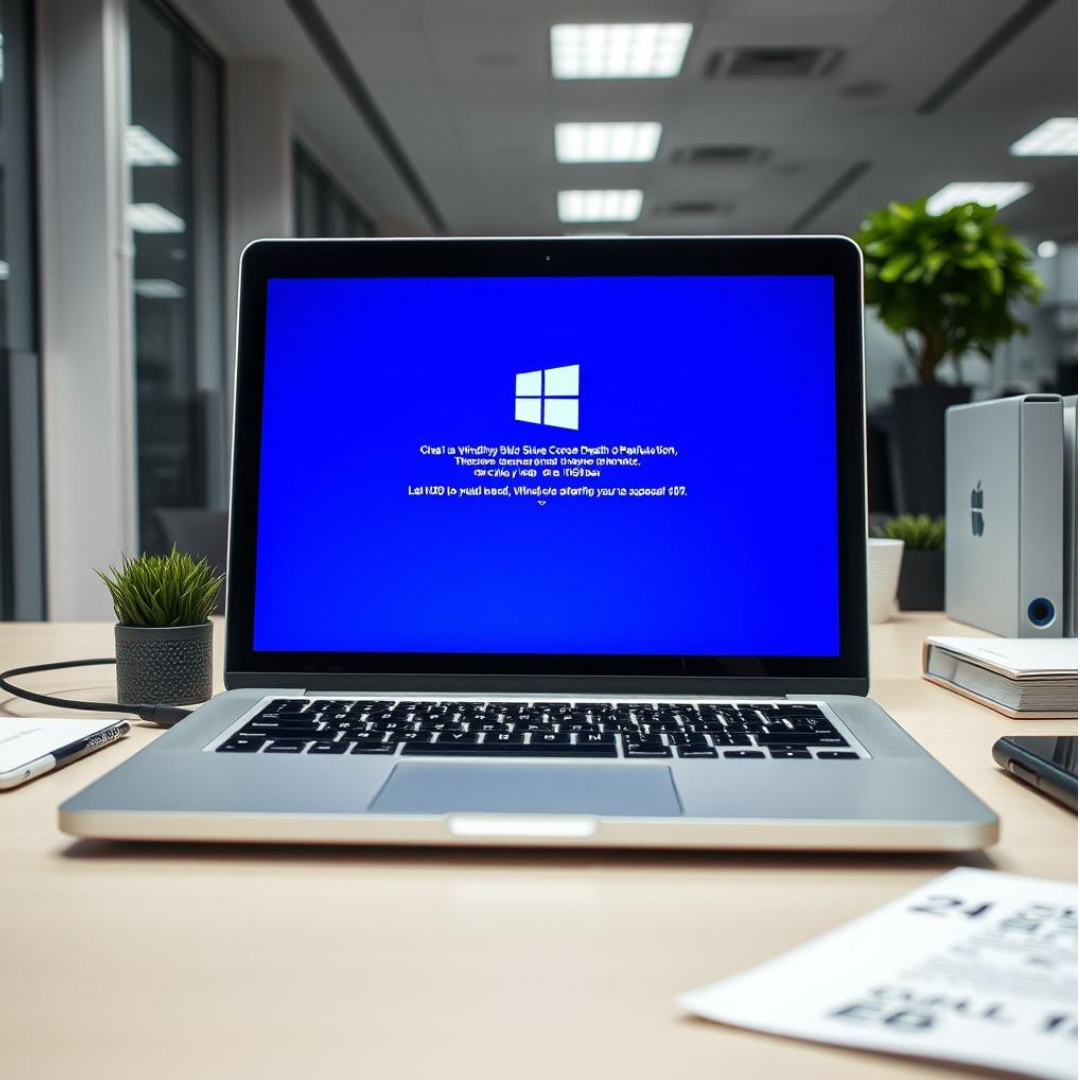
Common Windows errors can range from minor annoyances to significant system failures. Such mistakes may be due to software flaws, hardware failures, and user behaviour. Early detection and proactive fixes prevent severe system damage. If you’re experiencing persistent issues, consider reaching out to computer repair services in Princeton for professional assistance. This article covers various Windows errors and their solutions in detail. This is in two parts and here’s Part 1.
Common Windows Errors
Blue Screen of Death (BSOD)
The Blue Screen of Death (BSOD) strikes fear for Windows users. Fatal system errors occur when the operating system fails recovery attempts. The entire system crashes, work halts instantly. Frequent causes are hardware issues, driver problems, or system file errors. For severe hardware-related BSODs, computer hardware repair services in US can provide expert diagnosis and solutions.
How to Fix BSOD:
- Restart Your Computer: Sometimes, a simple restart can resolve the issue.
- Run Windows Memory Diagnostic tool: This built-in tool checks your RAM for errors.
- System Restore: System Restore resolves recent BSOD errors. Rolling back dates repairs system problems.
- Check for Hardware Issues: Hardware inspections reveal hidden dangers. Faulty RAM triggers crashes. Damaged hard drives create system failures. f issues persist, for professional hardware diagnostics, consider computer hardware repair in Lawrence as they offer comprehensive testing services.
- Update Drivers: Ensure that all your drivers are up to date, as outdated drivers can lead to compatibility issues.
Windows Update Errors
- Windows updates are crucial for security and performance. Sometimes, they fail to install correctly, leading to a host of problems. Users frequently experience errors in the update phase. Error code 0x80070057 appears often. These problems may be a result of corrupted update files or conflicting software. For complex update-related hardware problems, computer screen repair in Princeton specialists can help diagnose and fix underlying issues.
How to Fix Windows Update Errors:
- Run Windows Update Trouble-shooter: This native utility is capable of detecting/repairing some of those update related problems automatically.
- Manually install updates: If automatic updates fail, download and install manually from the website of Microsoft.
- Reset Windows Update components: Corrupted update files can prevent updates from being installed. To resolve this problem, resetting the update components by using the Command Prompt can be worked out. This involves turning off the Windows Update service, removing temporary files, and relaunching the service. If you’re experiencing power-related issues, computer charging repair in Lawrence can help ensure stable power supply.
- Check for system file corruption: Execute the System File Checker (SFC) utility with the command ‘sfc /scannow’ to fix corrupted system files.
Driver Errors
Incompatibility or obsolescence of drivers can lead to many problems, ranging from computer crashes to peripheral malfunctions, etc. For specialized hardware issues, IC chip repair in East Windsor offers expert solutions. Drivers are crucial for hardware components to operate correctly. (e.g., printers, graphics cards, audio devices.)
How to Fix Driver Errors:
- Update drivers via Device Manager: Right-click on “This PC” and select “Manage”. From here open “Device Manager” to view installed hardware. Right-click on any device and choose “Update Driver.”
- Use third-party tools: If you’re not sure which drivers need updating, try using trusted third-party software to update all drivers.
- Roll back drivers: If there are problems after an update, the previous version of the driver can be downgraded via Device Manager.
- Reinstall drivers: In some cases, uninstalling and reinstalling the problematic driver can resolve the issue. Example, if the computer screen doesn’t respond or a similar issue comes up, contact Computer screen repair services in Trenton for professional help.
“Application Not Responding” Errors or crashes
A crashed application halts productivity and frustrates you when work is not saved. If you’re experiencing these issues in Princeton, our computer repair services in Princeton can help diagnose the issue. Reason could be many background processes, system overload, software bugs, software incompatibility, lack of system resources, or software conflicts.
How to Resolve Application Not Responding Errors or application crashes:.
- End the task: Open Task Manager (Ctrl Shift Esc), pinpoint the faulty application and click “End Task.
- Check for system file corruption: Execute the SFC tool for checking the corrupt system files.
- Reinstall the application: If an application continues to crash, try uninstalling and reinstalling it, as this often solves the problem.
- Check for Updates: Ensure that the application is running the latest version, as updates often include bug fixes.
- Run in Compatibility Mode: If the application is with an older version, execute it from the compatibility mode of previous Windows editions.
System File Corruption and Errors (File and Folder Not Opening)
System file corruption is one of the most overlooked causes of Windows errors. Improper shutdowns, incomplete updates corrupt critical components, and faulty installations break system integrity. This all can result in slow performance, shutdowns, and even a failure to enter into Windows boot sequence. For specialized repairs, our computer hardware repair in Lawrence team can help diagnose these issues. If critical system files are damaged, Windows could fail to operate correctly and present a number of errors. Our IC chip repair in East Windsor specialists can address malicious software or system file damage.
How to Fix File and Folder Errors:
- Check file associations: There are instances in which the Windows is unable to determine a program needed to open a file. To correct this, right-click on the file, select “Open With,” and select the right program.
- Enter the “chkdsk” command: This command probes your disk for errors and tries to correct them.
- Run System File Checker (SFC): The most popular application for repair of system file errors is the SFC command. Use Command Prompt with administrator rights and type sfc /scannow to detect and repair faulty files. The tool attempts automatic corrections upon detecting problems.
- Use Deployment Imaging Service and Management Tool (DISM) tool: If SFC doesn’t work, the DISM tool can help. Execute the command DISM /Online /Cleanup-Image /RestoreHealth to scan and fix the system image and the Windows components.
- Reinstall/repair Windows: Severe system file corruption requires a repair install or Windows reinstall if other options fail.
Understanding Windows errors, their causes and solutions helps create a pleasant computing experience. Whether you’re coping with the Blue Screen of Death or repetitive application crashes, understanding to fix these problems saves time. For more difficult issues, please look for help from professional computer repair services in Princeton, or computer hardware repair services in the US. Professional technicians at computer screen repair in Trenton and computer battery replacement services in Lawrence can restore your system to peak performance.
FAQs
- What causes the Blue Screen of Death (BSOD)?
BSOD is usually caused by hardware issues, driver problems, or corrupted system files.
- How can I fix BSOD on my computer?
Restart your computer, check for faulty hardware, update drivers, or use System Restore.
- Why do Windows updates fail to install?
Failed updates are often due to corrupted update files, software conflicts, or internet issues. - How do I fix Windows Update errors?
Run the Windows Update Trouble-shooter, reset update components, or manually install updates. - What are driver errors, and how do they affect my PC?
Driver errors occur when hardware components fail to communicate properly, causing crashes or malfunctions. - How can I update my drivers?
Use Device Manager, Windows Update, or third-party tools to update outdated drivers. - Why do applications stop responding on Windows?
This happens due to system overload, software bugs, or lack of resources. - How can I fix an unresponsive application?
End the task in Task Manager, update or reinstall the app, or check for system file corruption. - What causes system file corruption?
Improper shutdowns, incomplete updates, or malware infections can damage system files. - How do I repair corrupted system files?
Run SFC (sfc /scannow) or DISM commands in Command Prompt to fix system files. - Why won’t my files or folders open?
The issue may be due to corrupted files, wrong file associations, or disk errors. - How do I fix file and folder errors?
Use the chkdsk command, check file associations, or repair Windows if needed. - When should I seek professional repair services?
If the issue persists after troubleshooting, consult a computer repair expert for a thorough diagnosis.



2 thoughts on “Common Windows Errors and Solutions – Expert Tips from Computer Hardware Repair Services in US (Part 1)”