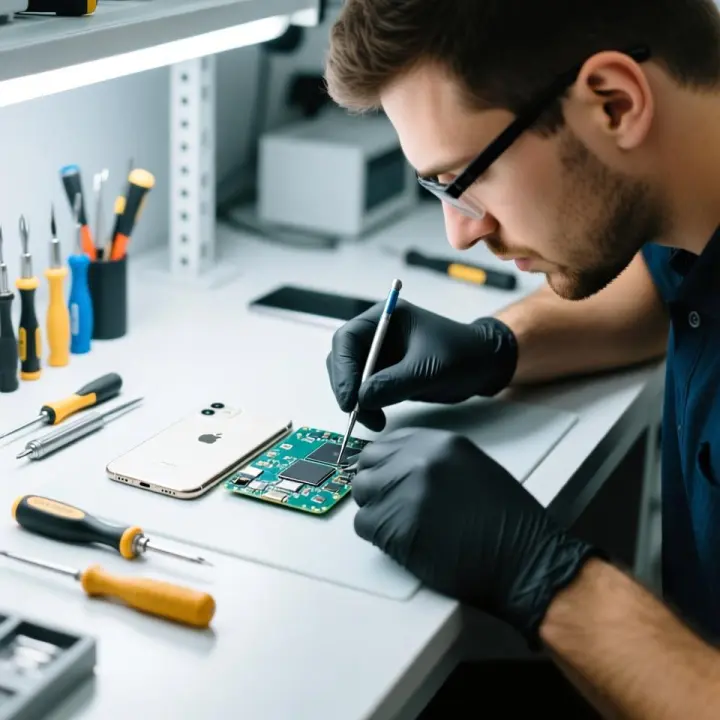
Windows errors, missing DLL files, system slow down and so on are frustrating, but most of them are solvable quite easily. This guide elaborates on common mistakes, their underlying problems, and trouble-free procedures to keep the system in good condition. If you’re dealing with persistent issues, seeking expert help from electronics repair services in Lawrence or computer hardware repair services can ensure a long-term fix. Furthermore, you will be guided as to when you’ll need to look for professional help to sort this issue out.
1. Missing DLL Files
The errors pertaining to the Dynamic Link Library come in when the system is unable to locate a particular DLL file. It could happen because of improper installation or unintentional deletion by a user.
Steps to rectifying missing DLL files:
Reinstall the application. More often than not, reinstalling the application that is causing the error will restore the missing DLL files.
Download DLL files. If not, you can download DLL files but be careful not to let malware in with the files.
2. Slow Performance and Lag
Computers get slow with time. Windows can get bogged down due to excess background programs, use of an out-of-date operating system, RAM instability, disk fragmentation, or excess storage. This can get particularly annoying, especially if you use your computer for work and fun.
How to Fix Performance Slow?
Clean out system: Use the Windows’ inbuilt tool, Disk Cleanup, to get rid of unnecessary files, system cache, and old updates.
Disable unnecessary startup programs: Various applications start automatically when your computer boots and take over system resources. Open Task Manager and uninstall programs that you do not need.
Scan for virus/malware: Malware will slow down your system more than anything else. Perform Windows Defender or a name-brand antivirus program scan, regularly on your system.
Hardware improvements: Only if the computer is still snail-like after these fixes, consider hardware upgrades (i.e., more RAM or SSD).
If you live in Trenton, consider visiting a local repair shop dealing with computer battery replacement services in Trenton for your general hardware repairs.
3. Unresponsive Windows Start Menu
Another frustrating issue many Windows users face is the unresponsive or frozen Start Menu. A corrupted or buggy Start Menu means that you cannot even use the essential programs, settings, or files, causing a serious interruption in the whole workflow. The following error is usually the result of bad system files, third-party software conflicts, or something may have gone wrong with some recent update
How to Fix an Unresponsive Start Menu:
• Restart Windows Explorer: In certain cases, the simplest solution is just to restart Windows Explorer, and that will revive your start menu. How to do this? Open Task Manager (Ctrl + Shift + Esc), navigate over to “Processes” window, locate “Windows Explorer,” then right-click it and choose Restart.
• Use the PS command: if you cannot restart after Windows Explorer, you may be able to reset the Start Menu with PowerShell. Open a PowerShell window as an administrator and type the following command:
Get-AppXPackage -AllUsers | % { Add-AppxPackage -DisableSolo -register “$($_.InstallLocation)\AppXManifest.xml”}
• Check updates: Occasionally, Microsoft updates conflict with the functionality of the Start Menu. Make sure your system is up on the latest updates by checking updates in the “Windows Update Settings.”
• Create a new user account: If the problem remains, creating a new user profile and moving your data may be your best bet.
If you are having major issues with your Start Menu, contact computer repair services in Princeton for fast and effective help, and get those issues fixed before they cause you further interruptions!
4. Network Connectivity Issues
Some network problems may include issues such as non-functioning web browsing, sending emails, or the inability to access shared files. Such issues may, in fact, develop owing to settings that are misconfigured, router faults, or bad network drivers.
Here’s how to fix network connection problems:
Restart your router and modem: Sometimes, the problem lies with the actual Internet connection. Restarting the router and modem works like a charm and fixes everything.
Run the Network Trouble-shooter: Windows has a built-in trouble-shooter that can exactly diagnose and even fix issues relating to network problems.
Reset TCP/IP stack: Open Command Prompt as administrator and type the command ‘netsh int ip reset’.
Update network drivers: Outdated or faulty network drivers can cause connectivity problems. You may try updating them directly in Device Manager, or visit any local repair shops providing computers hardware repair services in Lawrence.
5. Disk Space Errors
Lack of disk space can lead your system to lag and prevent new applications from installing on your PC. It may also cause Windows to not work properly.
Tips for Fixing Low Disk Space:
Use Disk Cleanup: Disk Cleanup tool helps to get rid of temporary files, old Windows update files and also system cache.
Move files to your external drive: If you are running out of space try offloading large files such as videos, pictures to an external hard drive or even cloud storage.
Enable Storage Sense: This handy tool will automatically clear temporary files and other things you don’t use any more to free up space.
6. Malware and Virus-related Errors
Malware will show itself as different system errors: crashes, sluggishness, and odd behavior. Protecting your PC from viruses and other malware is essential.
How to fix virus and malware errors:
Run Windows Defender: Windows has built-in antivirus protection. A full system scan can show various kinds of malware detected and help in a removal process.
Use Malwarebytes: This is one of the best third-party programs to do deep scanning and remove difficult malware.
Booting in Safe Mode: If malware is keeping you from running an antivirus program, boot your computer in Safe Mode and then scan your system.
7. Preventing Common Windows Errors
As it is important to fix common Windows errors, it is equally vital to prevent them from occurring at all, which can save you time and headaches. Regular system maintenance, software management, and keeping the hardware in good condition are all key components to ensuring that your computer will run well for years.
How to prevent common Windows errors:
Keeping your system updated: One sure way you can prevent errors is that you keep up to date with the patches of your operating system, drivers, and applications on a regular basis.
Antivirus software: Protect your system against the bad malware that can cause errors and instability of the system.
Regular cleanup of the system: Regularly cleaning the system often helps in preventing performance issues. Make use of Windows’ built-in capabilities like Disk Cleanup to remove temporary files, system logs, and other unnecessary data. For those that are still using an HDD, you might also want to defragment it every now and then.
Monitor your hardware: If your system suddenly slows down, verify your hardware for possible problems. Ageing hardware such as a failing hard drive or a worn-out battery can pile up many problems.
If you’re facing issues with hardware, seek professional help from services like computer battery replacement in Lawrence or computer hardware repair in Lawrence to ensure your system stays in peak condition.
Backup important data: Frequently back up important data to avert its loss in case of serious errors or system failures.
By implementing these preventive measures, you can stave off many of the typical Windows errors and keep your computer running smoothly for the long haul.
When to Seek Professional Help
Although most windows errors can be fixed with light troubleshooting, some will need professional help. Here are some of the signs where you should ask an expert:
Frequently repeating system errors that we cannot resolve.
• Hardware issues — Signs of potentially more serious things.
• Fear of repairing the system yourself.
If you are looking for computer repair services in Princeton, we provide the best services that are created for your needs. We specialise in computer hardware repair service in US, ensuring your devices are in good hands.
Frustrating windows errors, the why and how to fix them so that they do not eat too much of your time. Things like performance issues, update errors, or hardware problems have pragmatic fixes. If you cannot fix the issues yourself, then always safe-calling a local computer repair service in Princeton or computer hardware repair services in the US is an option you might want to go for. If maintained properly your computer will work like new for years.
FAQS
1. Why do I see missing DLL file errors?
This happens when a required system file is deleted or corrupted. Try reinstalling the affected application or downloading the missing DLL from a trusted source.
2. How can I speed up my slow Windows PC?
Use Disk Cleanup, disable unnecessary startup programs, scan for malware, and upgrade RAM or storage if needed.
3. What should I do if my Start Menu freezes?
Restart Windows Explorer via Task Manager, run a PowerShell command, or create a new user account.
4. How do I fix internet connectivity issues?
Restart your router, use Windows’ Network Troubleshooter, reset the TCP/IP stack, or update network drivers.
5. How can I free up disk space on my PC?
Use Disk Cleanup, move files to an external drive or cloud storage, and enable Storage Sense for automatic cleanup.
6. How do I remove malware from my computer?
Run Windows Defender or Malwarebytes, boot in Safe Mode, and perform a deep system scan.
7. How do I prevent common Windows errors?
Keep your system updated, use antivirus protection, clean up files regularly, and monitor hardware health.
8. When should I upgrade my PC hardware?
If your PC is still slow after fixes, consider adding more RAM, switching to an SSD, or replacing old hardware.
9. When should I call a professional for Windows issues?
If you face frequent crashes, hardware failures, or complex software errors you can’t fix, seek expert help.
10. Where can I get professional computer repair services?
For expert troubleshooting and hardware repairs, visit a local computer repair shop in Princeton or Lawrence.