Laptops are no longer machines that we work with. They have become our all-in-one devices – for video calls, online classes, playing games, and even binge-watching at night. However, over time, even the most stable laptops begin to slow down. The pages load slowly, changing applications is like a task, and you are staring at the rotating wheel much more frequently. You can upgrade the RAM (Random Access Memory) and give your laptop more power instead of buying a new one.
If you are fed up with your laptop’s slow performance, fret no more! This guide is all about RAM – what RAM is, why it is important, and whether you need to upgrade it yourself or get professional computer hardware repair services.
Why Does RAM Matter?
RAM is the temporary memory of your laptop. It caches all the data that is in use so that it can be accessed at any moment. The higher the RAM, the faster the multitasking in your system.
Consider this situation: 10 Chrome tabs are open, listening to music on Spotify, and typing on a Word document may seem like an ordinary thing to a lot of people. However, this can be a nightmare on a system with 4GB of RAM. You will see the system freezing or lagging. Upgrade to 8GB or 16GB, and all of a sudden, your laptop speeds up all tasks like a supercomputer.
Signs Your Laptop Needs a RAM Upgrade
Not every laptop running slowly needs more RAM, but there are clear signs that point to it:
• The Laptop is annoyingly slow when switching between applications
• Laptop takes several minutes to boot
• Programs crash frequently during multitasking
• Games or design software barely run or refuse to open.
How Much RAM Is Enough?
The right amount of RAM depends on the usage of the laptop:
- For normal users (emails, browsing, streaming): 8GB should be good enough in most cases.
- Students and office professionals: 8GB-16GB makes the process of multitasking much easier.
- Players, games, and graphics: 16GB and above are perfect when one is doing intensive work.
The charm of a RAM upgrade is in the fact that it is usually one of the easiest and affordable methods to increase the lifespan of your laptop.
DIY vs. Professional Help
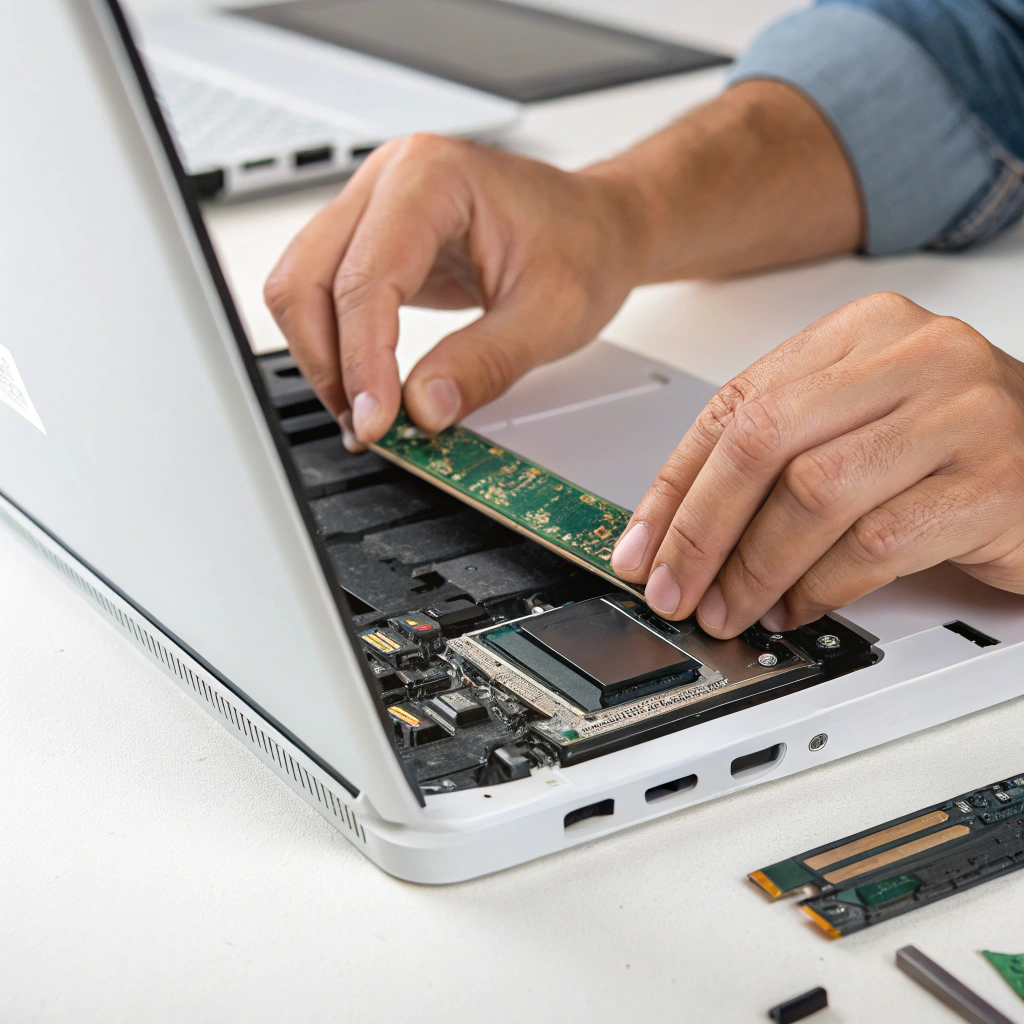
This is the interesting part. Some laptops make upgrading a breeze — you remove a small panel, slot in the RAM, and it’s done. Not all laptops are designed like this. Many new models have soldered RAM – it’s permanently attached to the motherboard. In these models, upgrading requires advanced skills, and it’s not worth risking damage.
This is the interesting part. Some laptops have a simple internal port to upgrade, just open the panel and then slide in the RAM, and it is done. Not every laptop is created like that. A lot of current models have paired RAM with solder – it is permanently soldered to the motherboard. So, in these situations, upgrading needs sophisticated skills and it is not worth taking chances.
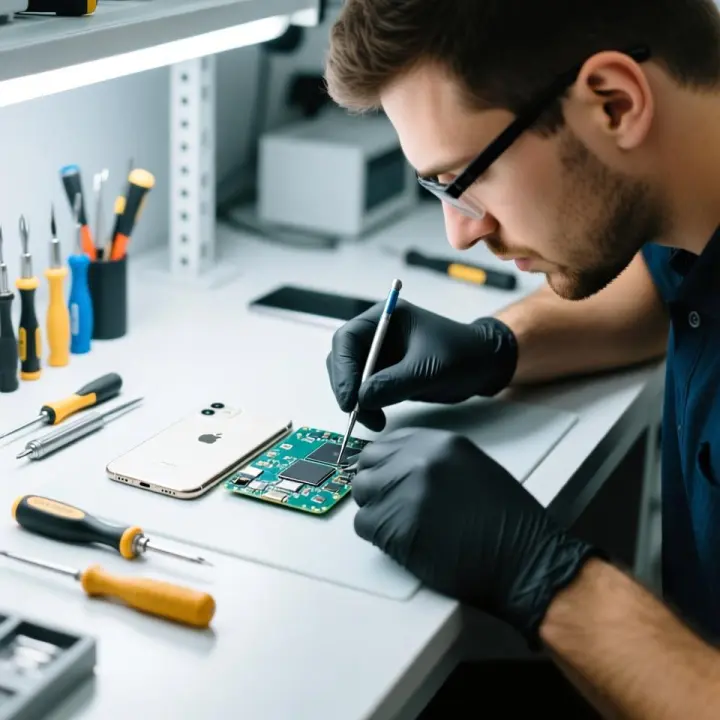
This is when professional help is required. A technician can quickly check compatibility and install the right RAM without you having to worry about damaging delicate components.
A Real Story
A customer tried to upgrade his laptop RAM after watching a DIY tutorial. It seemed simple until he pushed too hard while inserting the RAM stick. The result? Bent pins in the slot. What should have been a simple, affordable upgrade turned into a complicated repair job that required soldering services in North Brunswick.
DIY can help if you know what you’re doing. If you are unsure, handing it over to a professional can actually save you from bigger headaches and higher bills.
What to Check Before Buying RAM
Before buying new RAM, a little research is advisable:
- Check compatibility – Programs such as Crucial online scanner will inform you about the maximum RAM that your laptop can accept.
- Test current usage – In Windows, press Ctrl+Shift+Esc, go to the Performance tab, and the graph here shows the amount of RAM being used.
- Be aware of the capacity of your system – Laptops have a maximum of 8GB, but others have a capacity of 32GB and above.
- Match the speed – Using RAM sticks with different speeds will slow down the system.
When RAM Isn’t the Only Problem
Upgrading RAM may resolve most of the problems, but it is not a fix for other issues. When your laptop overheats, hangs every now and then, or the battery runs out within a short time, it could be a different problem. In these situations, you may need services like computer hardware repair in Lawrence or even electronics repair services in Trenton. Think of RAM as one part of the bigger puzzle — it’s crucial, but not the only piece.
The Difference You’ll Notice
When RAM is upgraded correctly, the improvement is often immediate:
• Fast booting
• Smoother multitasking
• Almost no freezes or crashes
• Better performance when using heavy apps and games
Imagine something like this – Zoom running, Photo editor open, and a dozen browser tabs open, all running without any issue. This is the kind of transformation a RAM upgrade can bring.
One of the best and least costly methods to improve the performance of your laptop is to upgrade the RAM. For some, it is a mere DIY activity. To others, professional assistance gives them peace of mind and ensures installation is done properly. Having extra RAM means that your device not only works but also works as you always needed it to.
FAQs
Q1. How do I know if my laptop supports a RAM upgrade?
Check your laptop’s specifications on the manufacturer’s website or use tools like CPU-Z. Most laptops mention maximum supported RAM and the type (DDR3, DDR4, or DDR5).
Q2. What is the difference between DDR3, DDR4, and DDR5 RAM?
These are different generations of RAM. DDR5 is the latest and fastest, followed by DDR4 and DDR3. Your laptop motherboard only supports one type, so compatibility is important.
Q3. Can I mix two different RAM sizes or brands?
Yes, but it’s best to use identical RAM sticks for stable performance. Mixing different sizes or brands may work, but it can lead to slower speeds or system instability.
Q4. Will adding more RAM improve gaming performance?
Yes, to some extent. More RAM helps games run smoother, but the biggest factor for gaming is still your graphics card.
Q5. What happens if I install unsupported RAM in my laptop?
Your laptop may fail to boot, crash, or simply not recognize the new RAM. Always check compatibility before upgrading.
Q6. Does upgrading RAM improve battery life?
Not directly. More RAM allows your laptop to handle tasks without overusing the hard drive, which can slightly reduce power consumption, but the difference is usually minimal.
Q7. How much RAM do I really need?
For everyday tasks like browsing and streaming, 8GB is enough. For gaming, designing, or heavy multitasking, 16GB or more is recommended.
Q8. Is it better to upgrade RAM or switch to an SSD first?
An SSD usually provides a bigger overall speed boost, especially for boot times and file access. RAM helps more with multitasking and heavy applications.
Q9. Can upgrading RAM void my laptop warranty?
It depends on the manufacturer. Some brands allow upgrades without issues, while others may consider it a warranty violation. Always check your warranty terms.
Q10. How can I check if my RAM upgrade was successful?
After installing, go to your system settings or Task Manager (Windows) / About This Mac (macOS) to confirm the system recognizes the new RAM.