We lead much of our lives on the screens of our laptops through connecting, creating, and working daily. That is why any flickering or display problem is a major inconvenience. Screen burn-in and flickering issues have been found to be two of the most prevalent display issues among users today.
Old and new laptops can be subject to such problems. With the display technology still developing, it is important to know the causes and solutions for these problems for anyone who relies on their device daily.
What Is Screen Burn-in?
The screen burn-in is when an image is left on the screen for a longer duration than normal. Later, when the content is changed, it gives a faint and shadowy effect. Let’s say you have been having a spreadsheet open all day. The outlines of the cells or graphs might not disappear as time passes, even after you have changed to a different window.
Burn-in, which was once a regular issue with CRT and plasma displays, has not entirely disappeared now, despite the high-end OLEDs and some LCDs developing it under prolonged use.
Real-life scenario:
A Princeton-based graphic designer who worked on the same software window for hours started noticing a faint outline of toolbars on her screen. She initially thought it was a software glitch. But when it didn’t disappear after restarting, it turned out to be early-stage burn-in. Visiting electronics repair services in Trenton solved the issue before it became a major repair job.
Why Laptop Screens Flicker
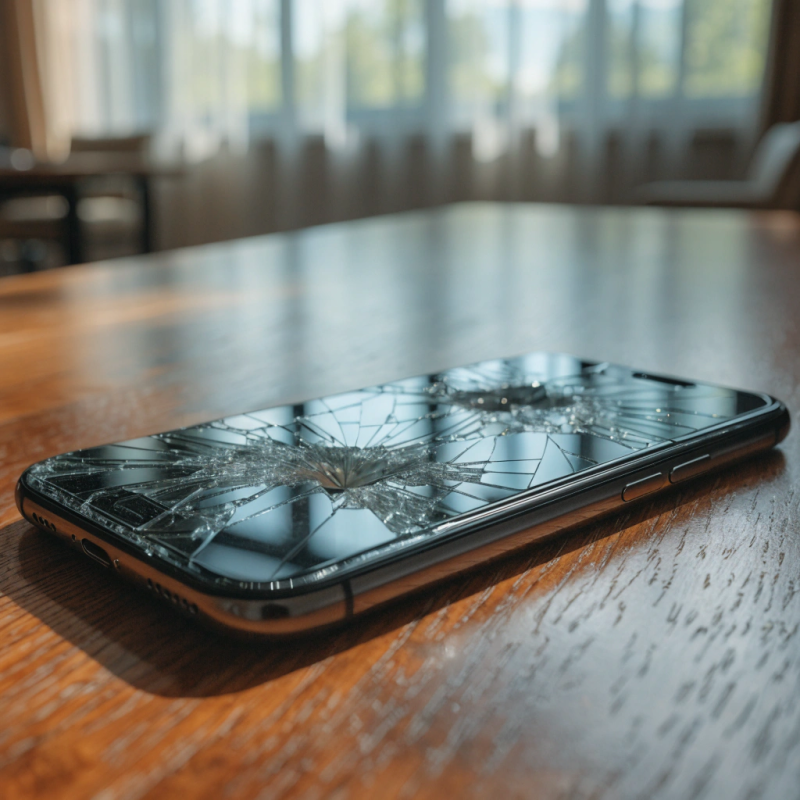
Screen flickering is a different issue. It appears as a rapid blinking, flashing, or shaking of the display, often caused by hardware or software malfunctions. It may occur occasionally or become a constant problem that makes the laptop almost unusable.
Common Causes of Burn-in and Flickering
Let’s break down the major reasons why these issues occur:
- Static Content on Screen
Having the same image, such as a browser tab, a game HUD, a spreadsheet, etc., on the screen over hours speeds up the process of pixel wear and may lead to burn-in. - Hardware Wear and Tear
With time, backlight, inverter boards or display connectors may weaken, resulting in flickering. - Driver or Software Issues
Flickering may occur due to outdated graphics drivers, Windows or macOS update bugs, or incompatible applications. - Overheating
A hot laptop may cause unpredictable behaviour of a display panel. In the long run, display components may be damaged permanently due to overheating. - Power Supply Fluctuations
Sharp upsurges or downswings in electric current may result in flickering, particularly during the process of charging the device.
How to Fix Laptop Screen Burn-in
Though severe burn-in can be permanent, early signs are usually minimised with these simple measures:
- Use a Screen Refresher Tool:
Special apps rapidly cycle colors to “unstick” pixels and reduce ghosting effects. This can help in mild cases. - Enable a Screensaver or Sleep Mode:
Avoid keeping static images on the screen. A simple moving screensaver can make a big difference over time. - Adjust Brightness:
Lowering brightness reduces pixel wear. High brightness levels accelerate burn-in, especially on OLED screens. - Change Display Content Frequently:
If you work on the same window all day, consider switching tabs or moving your windows occasionally to balance pixel usage.
Fixing Laptop Screen Flickering
There is no need to rush for a screen replacement – flickering is a common problem that can be fixed with some simple procedures.
- Update Your Graphics Drivers:
Install the latest version in the device manager or from the website of the manufacturer. A lot of display problems vanish upon a fresh driver update. - Check the Refresh Rate:
Change the refresh rate setting in display settings to the advised one. Unsuitable high rates or even incompatible rates will cause flickering. - Run the Laptop in Safe Mode:
If flickering ceases in safe mode, then it could be due to software conflict. Uninstall dubious programs or upgrade the operating system. - Inspect the Power Source:
If the flickering is only during charging, try using a second charger or outlet should be used to rule out the possibility of voltage variations. - Visit a Professional Repair Shop:
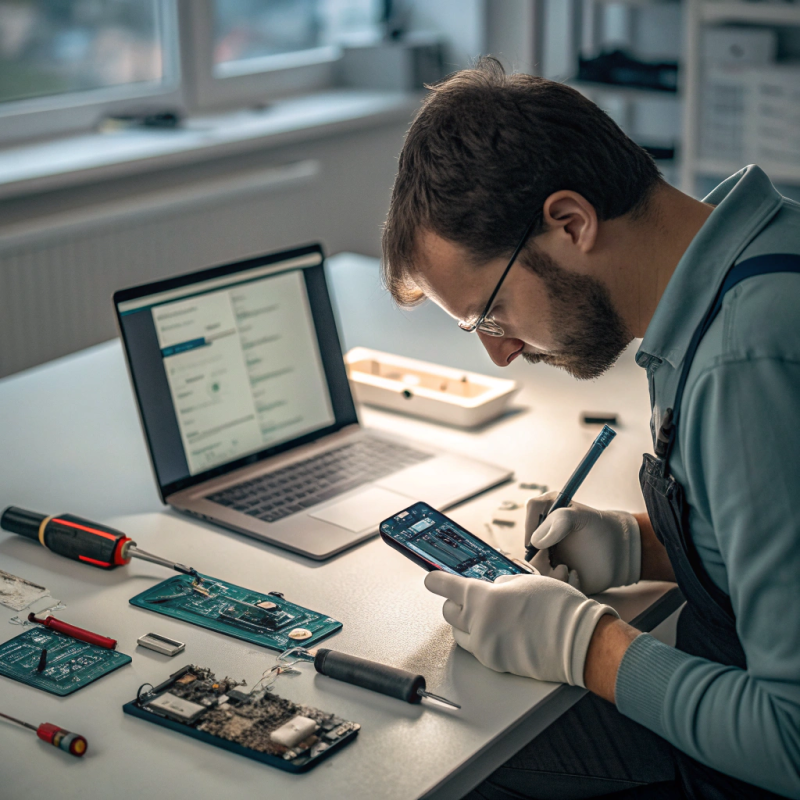
There is a possibility that the display cable, inverter or backlight might need replacement in case of a continuance of the problem.
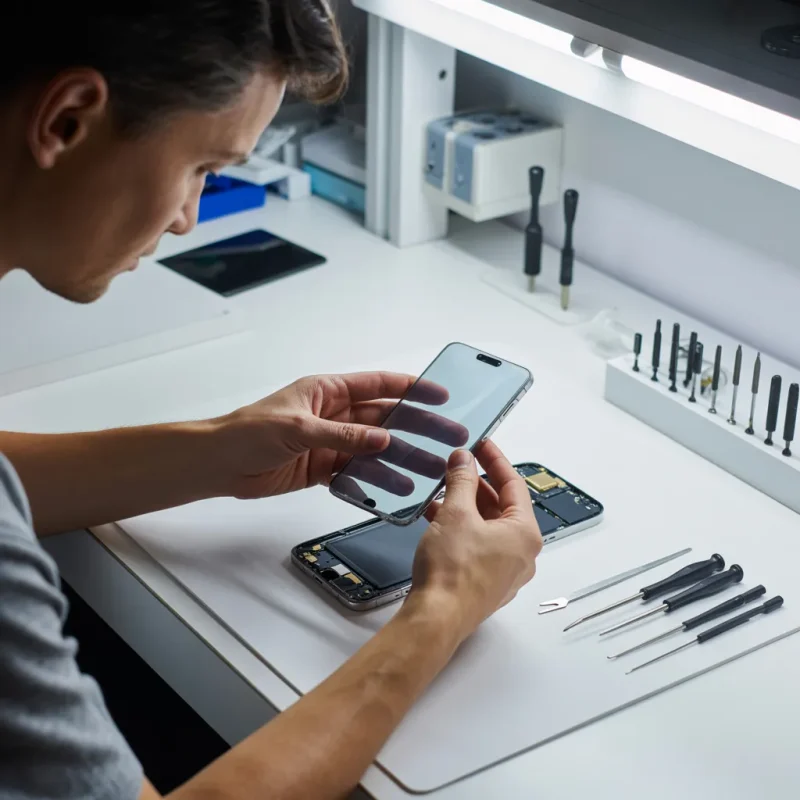
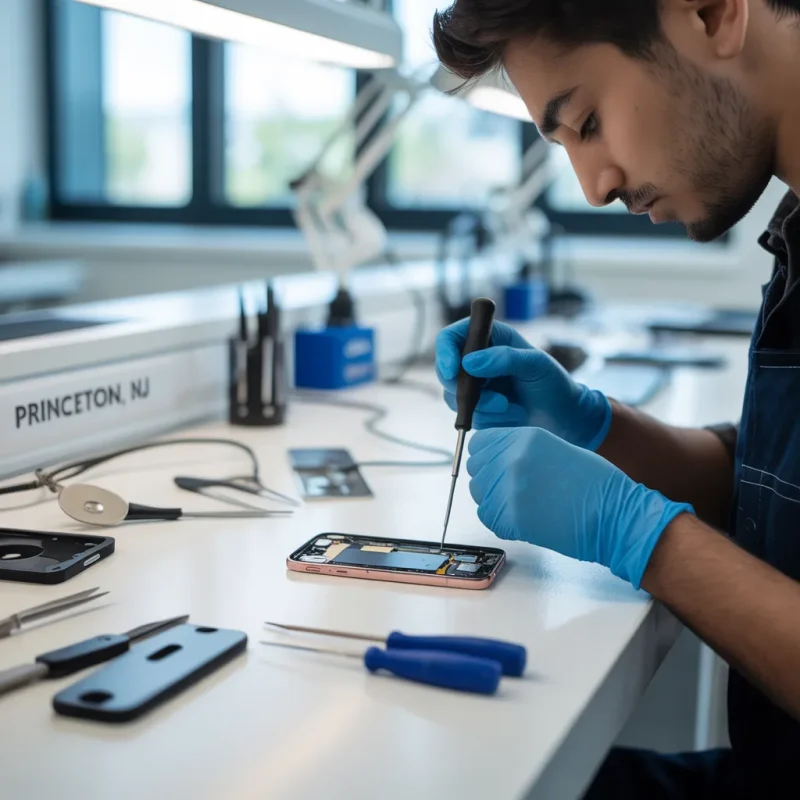
A quick repair visit today to computer repair services in Princeton or any computer hardware repair services, can save you from an expensive screen replacement tomorrow. Also a nearby mobile screen repair shop in Trenton can be a convenient solution
When to Seek Professional Help
Sometimes DIY fixes aren’t enough. If your laptop shows:
- Persistent burn-in that doesn’t fade
- Continuous or worsening flickering
- Discoloration or patches on the display
- Sudden blackouts or horizontal lines
…it’s time to get expert assistance.
Experienced and reliable computer hardware repair services will be capable of identifying the source of the problem as the display panel, cable connection, graphics card, or the power supply.
How to prevent screen-related issues.
It is always best to prevent rather than to cure. The following are some of the easy habits to extend your laptop screen’s lifespan:
- No long durations of having inert images or stopped videos on.
- Limit the brightness of the screens when it is not needed.
- Use screen protectors and wipe the screen using a soft, lint-free cloth.
- Check if your laptop has airflow to avoid overheating.
- Carry out frequent system upgrades and maintenance.
- Protect against changes in voltage with a surge protector.
Final Thoughts
One of the most sensitive parts of your gadget is the laptop screen. In recent years, as displays have become sharper and thinner, the problems of burn-in and flicker are becoming more evident, but they’re also easier to handle if one detects them early.
Be it a quick driver update, a simple cable repositioning, or a quick fix from electronics repair services in Trenton or computer repair services in Princeton will help you avoid an expensive screen replacement. With the proper information and a keener sense, you can ensure the maintenance of a clean, bright, and flicker-free screen a few years down the line.
FAQs
1. Can a laptop screen’s burn-in get worse over time if ignored?
Yes, if left untreated, mild burn-in can become more noticeable and harder to fix, especially on OLED screens.
2. Does using dark mode help prevent burn-in?
Yes, dark mode reduces pixel strain and brightness levels, which can slow down the burn-in process.
3. Is screen flickering harmful to the eyes?
Yes, prolonged exposure to a flickering screen can cause headaches, eye strain, and fatigue.
4. Can external monitors also experience burn-in or flickering?
Absolutely. The same issues can affect external displays, especially if they use OLED or older LCD panels.
5. Will a factory reset fix screen flickering issues?
A factory reset may fix software-related flickering, but it won’t solve hardware problems like loose cables or a failing backlight.
6. Can low battery levels cause a laptop screen to flicker?
Yes, in some cases, unstable power from a weak battery can cause brief flickers, especially on older laptops.
7. Does adjusting the refresh rate affect battery life?
Yes. Lowering the refresh rate can help save battery life, but setting it too low may make the screen appear less smooth.
8. Can screen flickering indicate a failing GPU?
Yes, if flickering is accompanied by performance drops, overheating, or system crashes, the GPU may be the root cause.
9. Are screen burn-in and dead pixels the same thing?
No. Burn-in is caused by image retention, while dead pixels are individual pixels that no longer work.
10. How often should I clean my laptop screen to maintain display health?
Once a week with a soft microfiber cloth is usually enough to prevent dust buildup and avoid long-term damage.