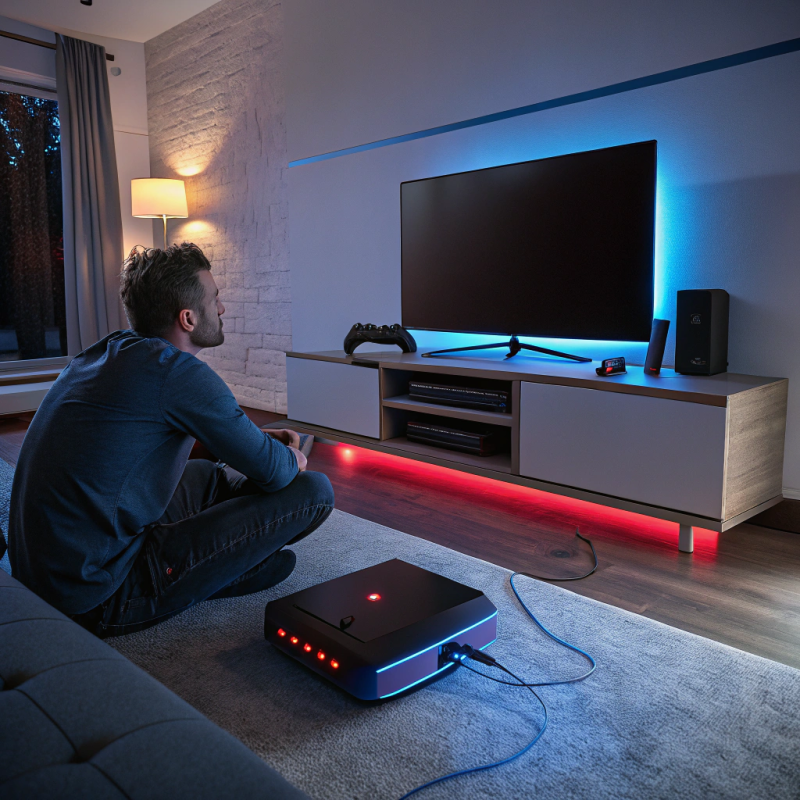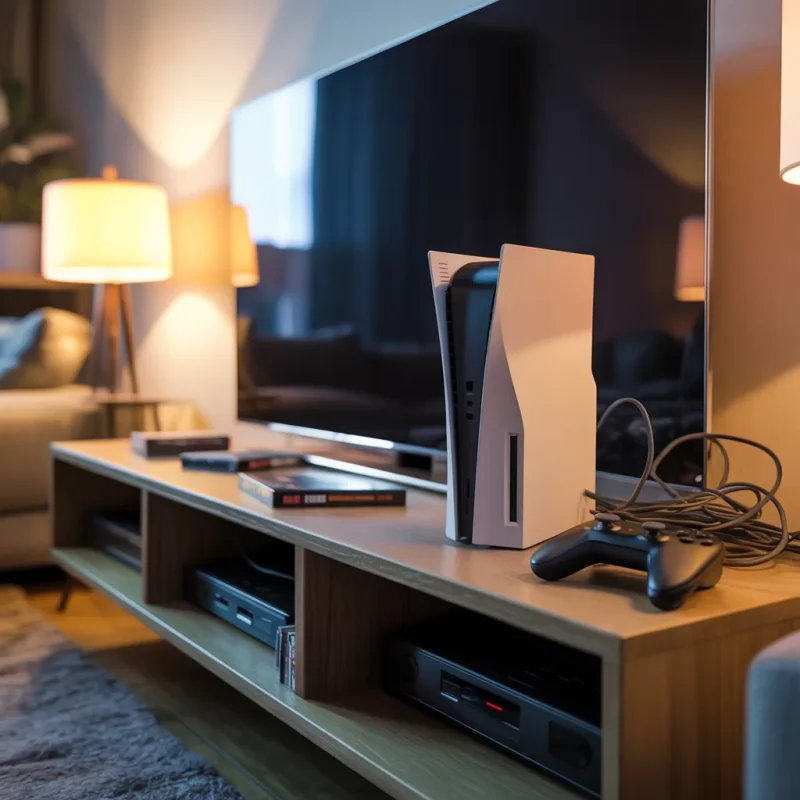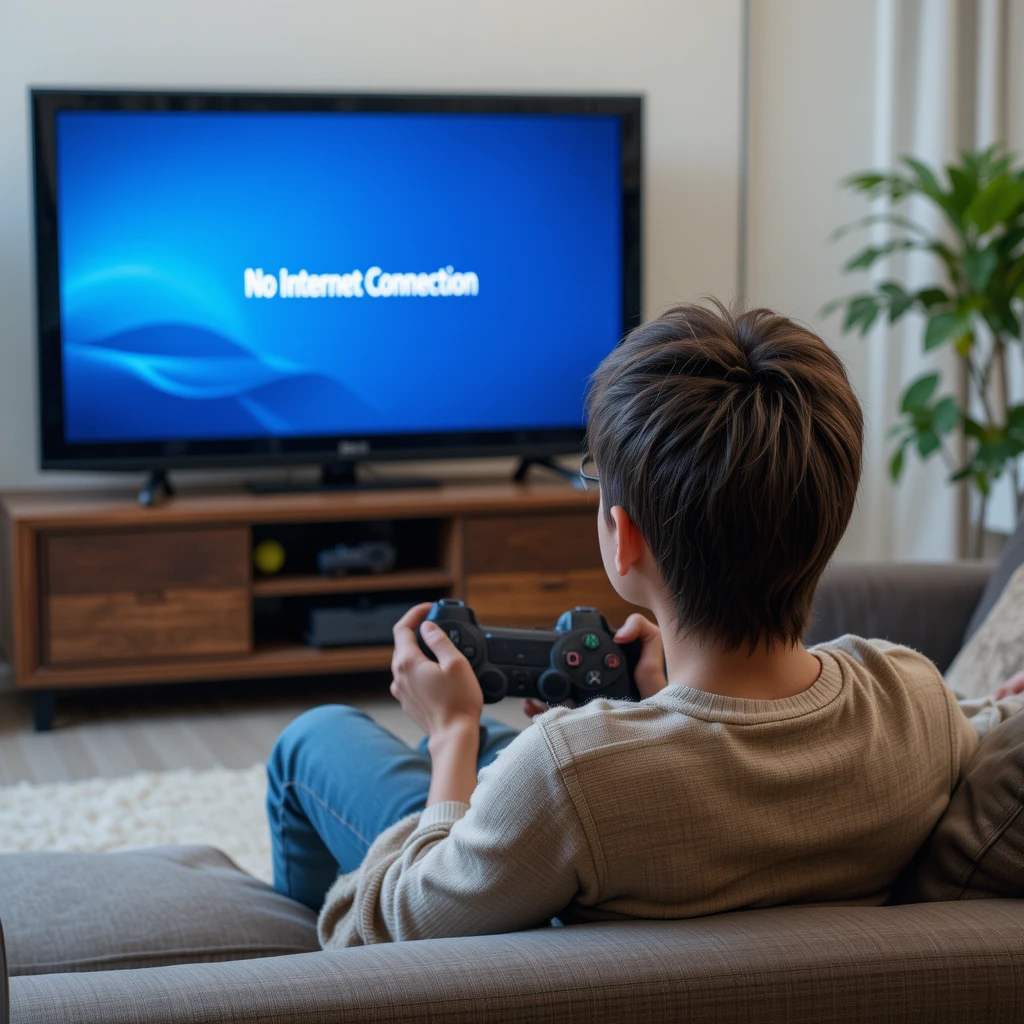
It is maddening when you are all set for a gaming session and you come to know that your PlayStation has problems connecting to the Internet. If you want to enjoy a great game with other players or just download a new game update, being unable to connect can be very bad. There is no need to worry! There are a lot of easy and complex actions you can perform to get rid of the problem.
In this article, we’ll walk you through what to do when your PlayStation refuses to connect online—and we’ll also show you where to find professional game console services in Lawrence and electronics repair services in Trenton if the problem needs a technician’s touch.
Step 1: Restart Your Console and Router
Sometimes, the solution is as simple as turning your PlayStation off and then back on again. Restarting your router and console can clear temporary glitches in the connection.
- Power off your PlayStation.
- Unplug your modem/router for at least 30 seconds.
- Plug everything back in and wait for the internet to reconnect.
- Turn on your PlayStation and check the network connection.
If this doesn’t work, it might be time to look into game console overheating solutions in Trenton, especially if your PlayStation feels unusually hot.
Step 2: Check Your Wi-Fi Settings
Make sure your console is trying to connect to the correct Wi-Fi network and that the password is correct. On your PlayStation, go to:
Settings > Network > Set Up Internet Connection, and select Wi-Fi or LAN based on your setup.
If your signal is weak, try moving your PlayStation closer to the router. Still not working? You may want to consider electronics repair services in Lawrence if the internal Wi-Fi adapter is malfunctioning.
Step 3: Test the Internet Connection
Navigate to:
Settings > Network > Test Internet Connection
This diagnostic tool will tell you:
- If your console is connected to the internet
- Download and upload speeds
- NAT type
If it fails at any stage, the issue could be on your ISP’s end, or it could be a hardware issue. That’s where computer hardware repair services or even mobile repair services in Lawrence (if you’re managing PlayStation apps) could assist.
Step 4: Update System Software
An outdated system can prevent your PlayStation from connecting to the internet. To check for updates, go to:
Settings > System Software Update
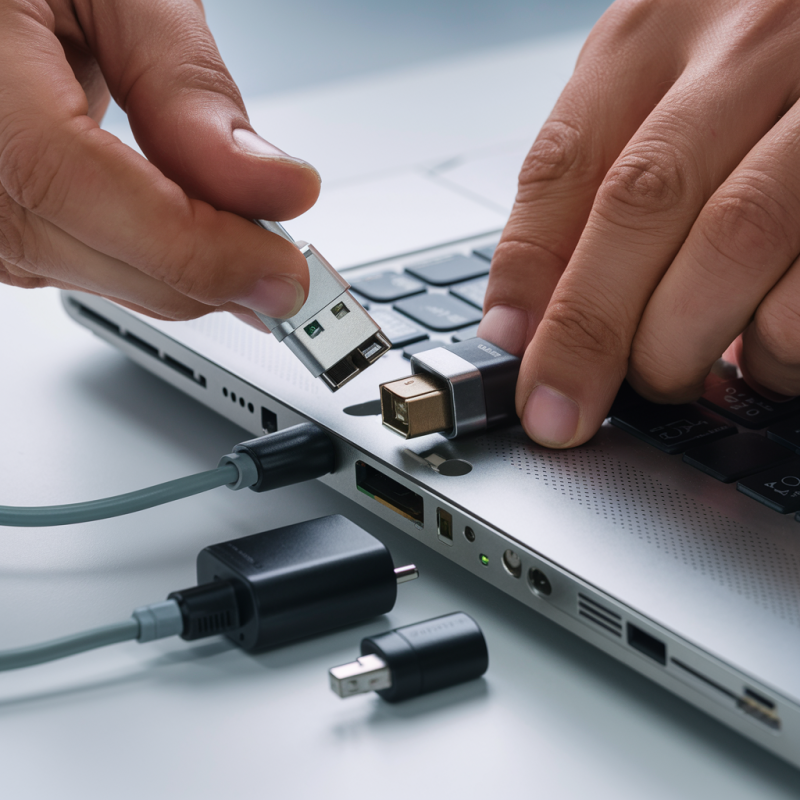
If your console can’t connect at all, you can download the update onto a USB drive using a computer and transfer it to your PlayStation. If you’re having trouble with the download or file management, local computer repair services in Princeton can help guide you through the process.
Step 5: Check for DNS or IP Issues
Sometimes, manual DNS settings can make a big difference. Try setting your DNS to Google’s:
- Go to Settings > Network > Set Up Internet Connection
- Choose Custom
- When you reach DNS Settings, select Manual
- Enter:
- Primary DNS: 8.8.8.8
- Secondary DNS: 8.8.4.4
This can resolve many connection errors related to IP conflicts.
Step 6: Ethernet as a Backup
If Wi-Fi continues to give you trouble, consider using a LAN cable to connect your PlayStation directly to your modem or router. A wired connection is generally more stable and can help determine if the problem is wireless-specific.
If the console works via Ethernet but not over Wi-Fi, you may need professional help to inspect the internal antenna.
Step 7: Check for Overheating Issues
If your PlayStation overheats, it may automatically disable network features to reduce stress on the system. Ensure your console has proper ventilation and isn’t placed on soft surfaces.
Persistent heating issues can indicate hardware damage. In that case, it’s smart to consult specialists in game console overheating solutions in Trenton to prevent long-term damage.
Step 8: Factory Reset (Last Resort)
If you’ve tried everything and your console still won’t connect, consider a factory reset:
Settings > Initialization > Initialize PS4/PS5 > Full
⚠ This will erase all data. Backup your data before performing this step.
When to Seek Professional Help
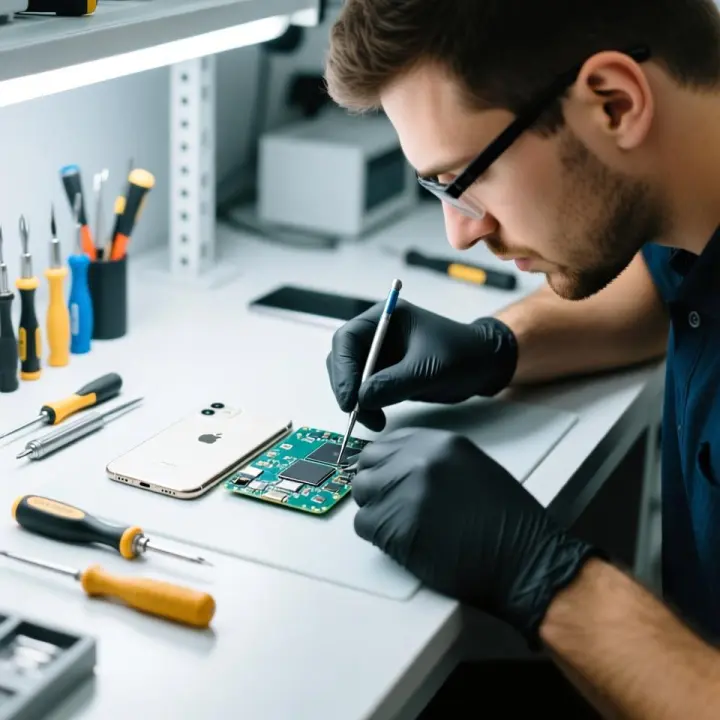
If you’ve exhausted all troubleshooting steps and your PlayStation still won’t connect to the internet, it might be time to get professional help.
Look for trusted services like:
- Game console services in Lawrence for gaming-specific issues
- Electronics repair services in Trenton for broader diagnostic needs
- Computer screen repair in Princeton and computer screen repair services in Trenton if you’re using a display that’s part of the issue
- Computer hardware repair in Lawrence for deep internal diagnostics
- Computer charging repair in Lawrence in case power inconsistencies are affecting your console
- Computer battery replacement services in Trenton and Lawrence for auxiliary devices and accessories
If you’re also experiencing issues with mobile apps used to manage or control your PlayStation, mobile repair services in Lawrence can help ensure smooth functioning.
Conclusion
A PlayStation that is not able to connect with the internet can be a real pain in the back – but with a bit of patience and some bright steps, usually, you can get it back online. From turning off and on your router to checking for overheating or even updating your DNS settings, there are many ways to troubleshoot.
If none of these work, you can also ask for the help of a specialist. Whether you are in Lawrence, Trenton, or Princeton, certified computer and electronics repair services are available that can get you back in the game immediately. Let not a connection problem come between you and your most beloved games – get the help and return to gaming with confidence.
FAQs
1. Why won’t my PlayStation connect to Wi-Fi?
Your PlayStation may not connect due to incorrect Wi-Fi settings, weak signals, outdated software, or hardware issues like a faulty internal antenna.
2. Can overheating cause internet issues on my PlayStation?
Yes. Overheating can lead to performance throttling or hardware malfunction, which may affect Wi-Fi connectivity.
3. How can I test the internet connection on my PlayStation?
Go to Settings > Network > Test Internet Connection to run a quick diagnostic of your console’s connectivity.
4. Should I use a LAN cable instead of Wi-Fi?
A LAN cable provides a more stable and faster connection. It’s a great alternative if your Wi-Fi is inconsistent or weak.
5. What if my PlayStation still doesn’t connect after trying everything?
If all troubleshooting fails, visit trusted game console services in Lawrence or electronics repair services in Trenton for expert help.
6. Can a software update fix connection issues?
Yes. An outdated system can cause network problems. Always keep your PlayStation’s software up to date.
7. How do I fix DNS errors on my PlayStation?
Manually set the DNS to Google’s servers:
Primary DNS: 8.8.8.8
Secondary DNS: 8.8.4.4
8. Is this problem covered under warranty?
It depends on the cause. Connection issues due to internal hardware might be covered if your PlayStation is still under warranty.